


About This File
Q Instructions
NOTE: If you have come from another cheat, or had a permanent ban please use the cleaner 2.exe.
To use cleaner follow this:
- Make sure all Redistributables are upto date
- Load exe
- There are two options
1. Clean COD
2. Clean Fortnite
Select COD if you are using cod
Select Fortnite if you are using Fortnite
And another panel will pop up:
Select 2 for COD
And wait this will now clean all tracers etc that the game has left on your system for COD.
When it says complete you are done
Disable firewall again as it might of been enabled
If you ever got Perm banned and above still didn't work then you will need to re do the cleaner and then use the PermSpoofer:
For Q Instructions:
First make sure Virtualization is off or you will be banned!
Instructions below:
Disabling SVM Mode or VT-X
For AMD users, disabling SVM Mode (or VT-X for Intel users) in the BIOS is another method to disable VBS. However, this method disables all virtualization features, including the ability to run virtual machines, so use this only if you do not require virtualization.
To disable SVM Mode or VT-X:
Restart your PC and enter the BIOS/UEFI settings (this usually involves pressing Delete, F2, or another key during startup).
Navigate to the CPU Configuration or a similar section.
Find SVM Mode (for AMD) or VT-X (for Intel) and disable it.
Save your settings and exit the BIOS.
How to run the cheat:
- Download the exe
- Put it in a folder
- Right click run as admin (IF YOU DO NOT YOU WILL GET ERROR "driver failed A"
Now enter your key, select Y to spoof.
Now launch your game.
Note: You may see remote desktop or another processor open on your desktop, do not close that as its there to confuse the anti-cheat.
Press INSERT to open and close menu
NOTE: If you have no esp showing make sure you delete any old Configs, it will be found in: C:\ and any other folders in your c drive usually C:\STZ OR QME Folder - delete that completely
And make sure you enable "Name" and Distance ESP"
One major thing to do is uninstall all Microsoft Visual C++.
And then install the latest runtime here:
https://learn.microsoft.com/en-us/cpp/windows/latest-supported-vc-redist?view=msvc-170
Still don't see menu? Then do this:
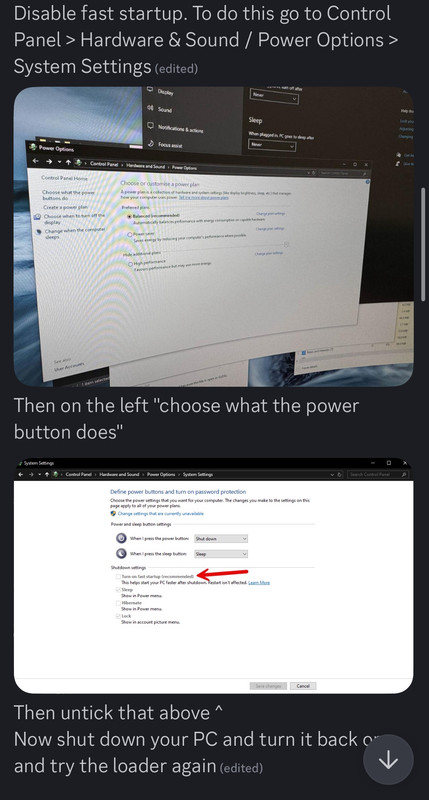
FOR SAVING AND LOADING CONFIGS:
How to Save and Load Your Configuration
Saving Your Configuration:
1. Customize your settings as desired within the tool.
2. Click Save Config to finalize your setup.
3. Press Alt+Tab to return to your desktop.
4. Right-click on your desktop and select New > Text Document.
5. Open the document, then press Ctrl+V to paste your configuration.
6. Save the document for future use.
Loading Your Configuration:
1. Open the saved text document.
2. Press Ctrl+A to highlight all the text.
3. Press Ctrl+C to copy the configuration.
4. Return to the game or tool and click Load Config.
5. Your configuration should now be applied successfully.
 With version 10.0: